
Have multiple PDF documents that you need to combine into one file? Whether you're organizing business reports, submitting assignments, preparing a job application, or sharing important documents, learning how to merge PDF files can make your work much easier.
The good news is that you don't need expensive software or advanced technical skills to combine PDFs. With a free online PDF merger, you can upload multiple documents, arrange them in the correct order, and download a single PDF.
In this guide, you'll learn how to merge PDF files online for free, combine documents on Windows and Mac, and avoid common problems such as incorrect page order, large file sizes, and formatting issues.
How to Merge PDF Files Online for Free
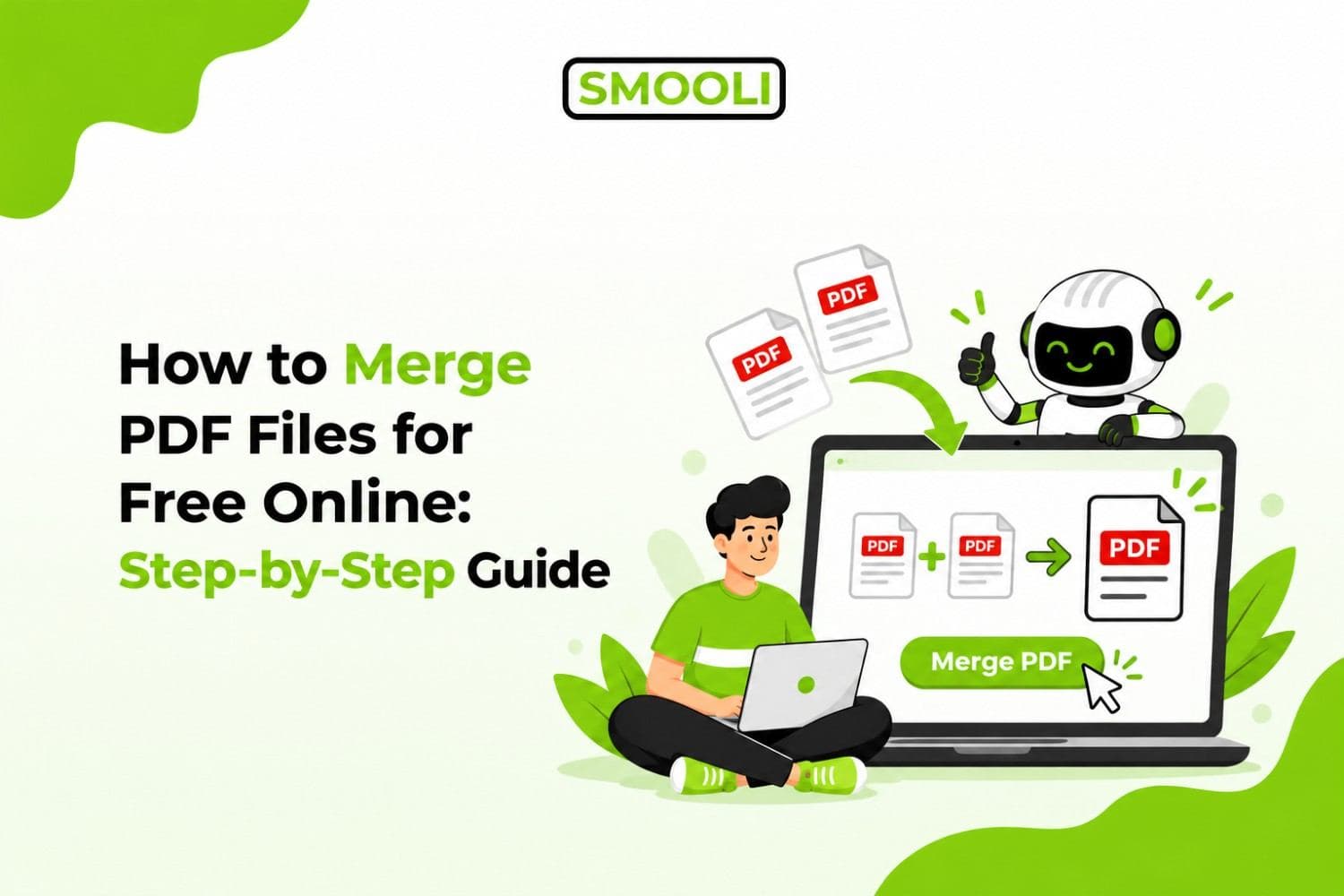
To merge PDF files online, open a PDF merger, upload two or more PDF documents, arrange them in your preferred order, click the merge button, and download the combined file. You can complete this process directly in your web browser without installing additional software.
For a straightforward solution, you can use Smooli's free PDF merger to combine multiple documents into one PDF.
Here's how the process works.
Step 1: Open the Smooli Online PDF Merger
Start by opening the PDF merging tool in your preferred web browser. You can use a desktop computer, laptop, tablet, or smartphone. Since the tool works online, you don't need to download a separate PDF editing application.
Step 2: Upload Your PDF Files
Click the Browse button or use the drag-and-drop upload area to select the PDF documents you want to combine.
Step 3: Arrange PDFs in the Correct Order
After adding your files, arrange them in the sequence you want them to appear in the final document.
For example, when combining a job application, you may want your resume first, followed by your cover letter and supporting certificates.
Arranging files before merging helps readers navigate the finished document without unnecessary confusion.
Step 4: Click the Merge Button
Once you've selected and organized your documents, click Merge Now. The PDF merger combines the selected files into a single document while aiming to preserve their original page layouts, text, and images.
Processing time can vary depending on the number and size of the files.
Step 5: Download Your Merged PDF
After processing is complete, download the combined PDF to your device. Open the downloaded document and check that:
- All required pages are present.
- The documents appear in the correct sequence.
- Text, images, and tables display properly.
- No pages are missing or unintentionally duplicated.
Your merged PDF is now ready for sharing, printing, uploading, or storing.
What Does It Mean to Merge PDF Files?
Merging PDF files means combining two or more separate PDF documents into a single PDF while maintaining their page sequence.
For example, suppose you have three PDF reports containing 5, 8, and 7 pages. Combining all three documents creates one PDF containing 20 pages, assuming no pages are excluded.
The original documents don't need to have the same page count, layout, or dimensions. PDF merging is especially useful when you want to organize related documents without manually copying and pasting their contents.
What Is the Difference Between Merging and Compressing PDFs?
Although both operations help manage PDF documents, they serve different purposes.
| Feature | Merge PDF | Compress PDF |
|---|---|---|
| Main purpose | Combine multiple PDFs | Reduce PDF file size |
| Number of documents | Usually two or more | One or more |
| Page count | Combines pages from source files | Usually stays the same |
| File size | Often increases | Usually decreases |
| Best for | Document organization | Uploading and sharing large files |
Important: Merging PDF files does not automatically compress them. If the resulting file exceeds an upload limit, you may need to compress it separately.
How to Combine Multiple PDF Files Into One Without Losing Quality
One of the most common concerns about merging PDFs is whether the process changes text formatting, image resolution, or the original layout.
In many cases, a PDF merger can combine existing pages without significantly changing their visual appearance.
However, results depend on the merging software and the structure of the original documents. Here are practical ways to maintain document quality.
1. Use Original PDF Documents
Whenever possible, merge the original PDF files instead of screenshots or images converted back into PDF format.
Original PDFs may contain selectable text, vector graphics, searchable content, and other information that screenshots cannot preserve.
2. Avoid Unnecessary PDF Conversions
Repeatedly converting documents between PDF, image, and word-processing formats can introduce formatting differences.
If your files are already PDFs, merge them directly rather than converting them into another format first.
3. Check Image and Text Clarity
After merging, zoom in on important pages and inspect images, text, charts, and tables.
Pay particular attention to documents containing detailed diagrams, small text, scanned signatures, or high-resolution graphics.
4. Keep a Backup of the Original Files
Always retain copies of your source documents until you've checked the merged PDF.
This makes it easier to correct errors, change the page sequence, or replace an incorrect document.
Common Problems When Merging PDF Files and How to Fix Them
Combining PDFs is usually straightforward, but problems can occur when files are damaged, unusually large, password-protected, or incorrectly arranged.
Problem 1: PDF Files Are Not Merging
Possible causes: A corrupted PDF, unsupported file structure, password protection, or an upload error.
Solution: Open each document separately to confirm it works. Try merging two files at a time to identify the problematic document.
Problem 2: Pages Appear in the Wrong Order
Possible cause: The documents were uploaded or arranged in an incorrect sequence.
Solution: Review the file order before clicking the merge button. For frequent merging tasks, naming files 01-Introduction.pdf, 02-Report.pdf, and 03-Appendix.pdf can help prevent mistakes.
Problem 3: The Merged PDF Is Too Large
Possible cause: The combined document contains numerous pages, high-resolution images, or scanned content.
Solution: Remove unnecessary pages, optimize oversized images, or use an appropriate PDF compression tool after merging.
Remember that PDF merging and PDF compression perform different operations.
Problem 4: A Password-Protected PDF Cannot Be Merged
Possible cause: The document has security restrictions that prevent modification.
Solution: If you are authorized to edit the file, unlock it using the correct password or request an unrestricted copy from the document owner.
Problem 5: Text or Images Look Different
Possible cause: The merging application changed the page rendering or did not fully preserve certain PDF features.
Solution: Try a different merging method and compare the resulting file with the original documents. For complex documents, use software designed to preserve advanced PDF features.
Problem 6: The Downloaded PDF Will Not Open
Possible causes: An incomplete download, insufficient storage, or a damaged output file.
Solution: Download the result again, confirm that sufficient storage is available, and try opening the PDF in another compatible reader.
How to Edit a PDF After Merging Multiple Files
Merging documents creates a combined PDF, but it does not automatically make the text editable. If you need to revise paragraphs, update information, or make other content changes, converting the merged PDF into an editable document may help.
For supported documents, Smooli's PDF to Word converter can help convert PDF content into a Word document for editing.
A typical workflow is:
- Merge your PDFs into one document.
- Check the combined PDF for missing pages or formatting issues.
- Convert the PDF into an editable Word format.
- Make the required changes.
- Export the edited document back to PDF if needed.
Keep in mind that complex layouts, scanned documents, and unusual fonts may require manual adjustments after conversion.
Frequently Asked Questions About Merging PDF Files
1. How do I merge two PDF files into one?
Open an online PDF merger, upload the two documents, arrange them in the desired order, and click the merge button. Download the resulting PDF once processing is complete.
2. Can I merge PDF files online for free?
Yes. Free online PDF merging tools allow you to combine multiple PDF files without purchasing desktop software. Some services may have file-size, usage, or document-count limits.
3. Can I merge PDF files on my phone?
Yes. You can combine supported PDF documents using an online PDF merger through a mobile browser on Android or iPhone.
Conclusion
Learning how to merge PDF files is a useful skill for organizing documents, simplifying file sharing, and preparing professional or academic submissions. Whether you're combining two documents or several reports, an online PDF merging tool can help you create a single file without installing additional software.
Before sharing your final document, always check its page order, formatting, file size, and readability.
With the right merging method and a few simple precautions, you can keep your PDF documents organized, accessible, and ready to use.