

Introduction
Have you ever typed your website's address into your browser and watched the page just refuse to load? That little moment of panic is familiar to almost every website owner. You immediately start asking, "Is my website really down, or is there something wrong with my internet?"
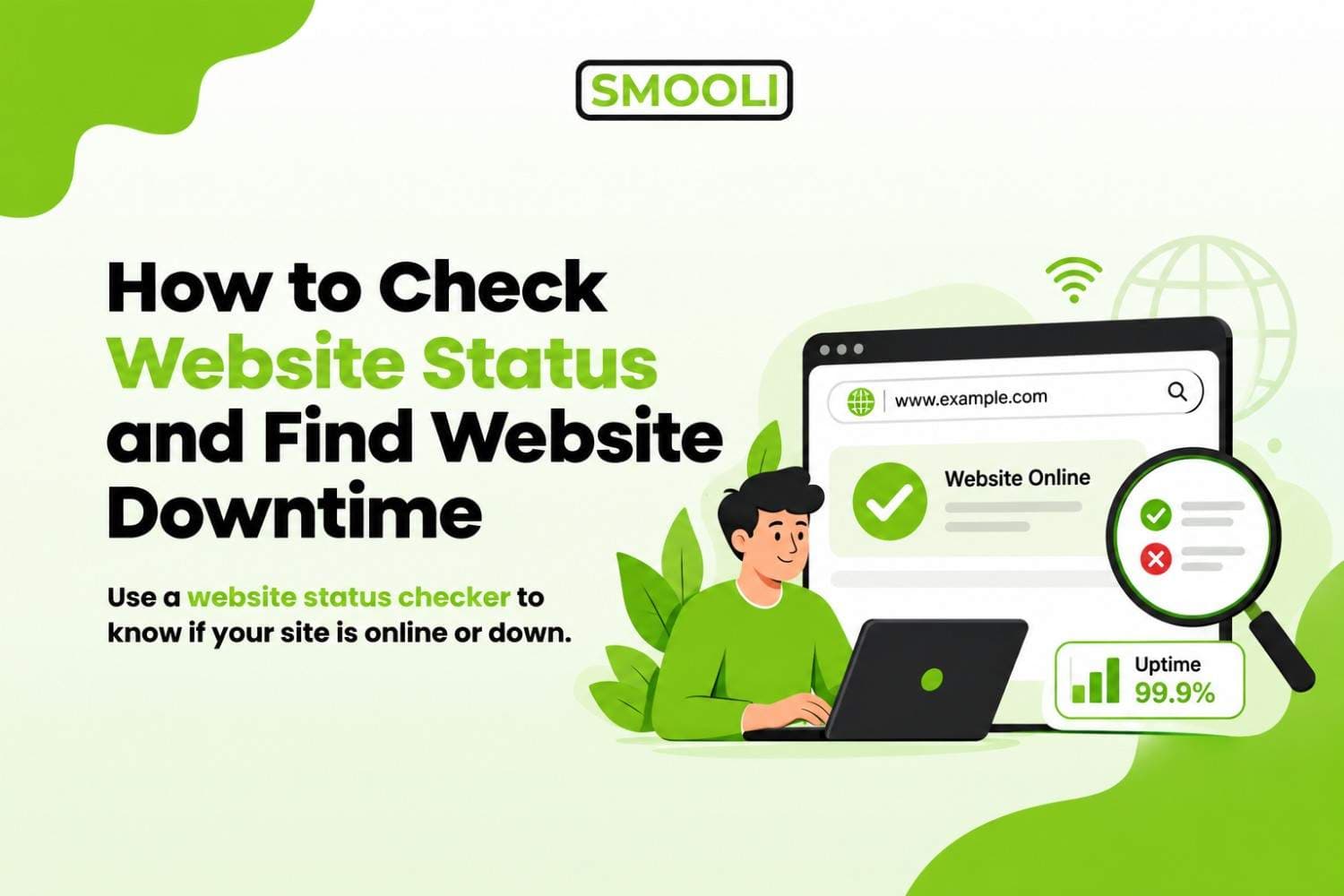
The good news is that you don't have to guess. You can check your website status in just a few seconds using an online Smooli website status checker. It can help you determine whether your website is online, unavailable, or returning a server error.
In this guide, we'll show you how to check website status, how to identify website downtime, and how to use a website issue checker to find common problems. We'll also explain what to do if your website is not loading and how to check whether the issue is caused by your server, DNS, hosting, or local internet connection.
What Is Website Status?
Website status refers to whether a website can be successfully reached and accessed by users. When someone enters a URL into a browser, several things happen behind the scenes. The browser connects to the domain, finds the server through DNS, sends a request, and waits for the server to return a response. If everything works correctly, the website loads.
If something goes wrong, users may see errors such as:
- Website is unavailable
- Server not found
- Connection timed out
- 404 Not Found
- 500 Internal Server Error
- 502 Bad Gateway
- 503 Service Unavailable
- DNS error
- Connection refused
A website status check helps determine whether the problem is with the website itself or with another part of the connection.
How to Check Website Status (Step-by-Step)
Now let's get into the practical part. Checking whether your website is online is actually pretty simple once you know where to look.
Step 1: Use a Website Status Checker Tool
The fastest and most reliable way to check if your website is up is to use a dedicated tool built for this exact purpose. Instead of guessing or refreshing your browser fifty times, a proper website status checker will instantly tell you whether your site is reachable, what status code it's returning, and how long it took to respond.
Here's how it typically works:
- Go to the Smooli website status checker tool.
- Type in your website's URL.
- Hit "Check" or "Test."
- Within seconds, you'll see whether your site is online, along with useful details like response time and server status.
The best part about using a dedicated checker is that it tests your site from external servers, not just your own device. This matters a lot, because sometimes a website looks "down" only because of a problem on your end, like a bad internet connection, a browser cache issue, or a firewall blocking access. A proper checker removes all that guesswork.
Step 2: Try Loading Your Site From a Different Network
If you don't have access to a checker tool right away, try opening your website using mobile data instead of your Wi-Fi, or ask a friend in a different location to check it. If it loads for them but not for you, the issue is likely local to your device or network, not your actual website.
Step 3: Check Your Browser's Error Message
Browsers often give hints about what's wrong. If you see:
- "This site can't be reached" could be a DNS or server connection issue.
- "404 Not Found" means the specific page doesn't exist, but the site itself might be fine.
- "500 Internal Server Error" means something's wrong on the server side.
- "Connection timed out" means the server took too long to respond, possibly overloaded or down.
These small clues can help you, or your hosting support team, figure out where to start looking.
Step 4: Clear Your Cache and Cookies
Sometimes your browser shows you an old, cached version of an error page even after the site is back up. Clearing your browser cache or trying an incognito/private window can rule this out quickly.
Website Issue Checker: Spotting Problems Beyond "Just Down"
A website doesn't always go fully offline. Sometimes it's technically "up" but still broken in ways that hurt your visitors' experience. This is where a good website issue checker becomes really useful, since it looks deeper than a simple "yes it's online" answer.
Here are common issues a solid checker can help you catch:
- Slow loading times: Your site loads, but takes forever, which frustrates visitors and hurts SEO.
- Broken links: Pages that return 404 errors because the URL structure changed or content was deleted.
- SSL certificate problems: Your site shows a "not secure" warning, which scares visitors away and damages trust.
- Mixed content warnings: Some elements load over an unsecured connection even though your site uses HTTPS.
- Redirect loops: The page keeps redirecting endlessly and never actually loads.
- Server errors on specific pages: The homepage works fine, but a product page or blog post throws an error.
Common Causes of Website Downtime
Understanding why websites go down helps you troubleshoot faster and prevent future issues. Here are the most common culprits:
1. Server Overload
If too many visitors try to access your site at once, especially without proper hosting resources, your server can crash or slow to a crawl.
2. Hosting Provider Issues
Sometimes the problem isn't your website at all, it's your hosting company having server maintenance, outages, or hardware failures.
3. DNS Problems
Your domain name needs to correctly point to your server's IP address. If there's a misconfiguration or your DNS records haven't propagated properly, visitors won't be able to reach your site even though the server itself is running fine. If you suspect a DNS problem, it's worth running a proper DNS checker to inspect your domain's records.
4. Expired Domain or Hosting
It sounds simple, but it happens more often than you'd think. Forgetting to renew your domain registration or hosting plan will take your site offline instantly.
5. Plugin or Software Conflicts
If you run a website on a platform like WordPress, a poorly coded plugin or a bad update can crash your entire site.
6. Security Attacks
DDoS attacks flood your server with fake traffic to overwhelm it, while malware infections can corrupt files and bring your site down entirely.
7. Expired SSL Certificates
An expired SSL certificate won't necessarily take your whole site offline, but it will show scary security warnings that stop visitors from proceeding.
Best Practices to Prevent Future Website Downtime
Preventing downtime is always better and less costly than dealing with unexpected website issues. These simple practices can help keep your website stable, accessible, and reliable.
Monitor Your Website Regularly
Use a website status checker to monitor your site and identify downtime before visitors or customers report a problem.
Choose Reliable Web Hosting
Select a trusted hosting provider with a strong uptime guarantee, ideally 99.9% or higher, to minimize server-related downtime.
Keep Your Website Software Updated
Regularly update your CMS, plugins, themes, and other software to prevent compatibility issues and security vulnerabilities.
Renew Your Domain and Hosting Early
Avoid unexpected downtime by renewing your domain and hosting before their expiration dates rather than waiting until the last minute.
Use a Content Delivery Network (CDN)
A CDN can reduce server load, improve website speed, and help deliver your content more reliably to visitors around the world.
Set Up Automated Backups
Create regular automated backups so you can quickly restore your website if an update, technical issue, or unexpected error causes problems.
Enable Uptime Alerts
Set up notifications to receive an immediate alert when your website goes offline, allowing you to respond before the issue affects too many visitors.
Check Your DNS Configuration
After changing your domain, hosting, or DNS settings, verify that your records are correctly configured to prevent accessibility and connection problems.
Building these habits into your regular website maintenance routine can turn downtime prevention from a stressful emergency into a simple, proactive checkup.
Frequently Asked Questions
1. How do I check website status?
You can check website status by using an online website status checker. Enter your website URL and run the test to see whether the server is responding and whether an HTTP error is detected.
2. How can I tell if my website is down?
Run an online website availability test and try opening the website from another device or network. If the site fails from multiple locations, it may be experiencing downtime.
3. What does a 404 error mean?
A 404 error means that the requested page or resource could not be found. It does not necessarily mean that the entire website is down.
4. What does a 500 error mean?
A 500 Internal Server Error generally indicates a problem on the server side. The exact cause can vary and may require checking server or application logs.
5. What's the difference between a website being "down" and "slow"?
"Down" means the server isn't responding at all, visitors get an error page. "Slow" means the server is responding, but it's taking longer than normal, often due to server overload or hosting limitations.
Final Thoughts
Knowing how to check website status is an important part of website management. When a website suddenly stops loading, the first step is to determine whether the website is actually down or whether the problem is limited to your device or network.
An online website status check can quickly show whether your server is responding. If the website is unavailable, you can then investigate common causes such as hosting problems, DNS errors, domain expiration, server overload, SSL issues, or application errors.
If you manage a website, don't wait for visitors to tell you that something is wrong. Regularly checking website availability and monitoring uptime can help you discover problems earlier and reduce the impact of unexpected downtime.