

Introduction:
PDF is one of the most common file formats for sharing documents, but sometimes you need to convert a PDF into a TIFF file for printing, archiving, scanning, publishing, or image-based workflows. If you are wondering how to convert a PDF to a TIFF file, the good news is that you can do it quickly without expensive software.
A TIFF file, also called a Tagged Image File Format file, is designed to store high-quality images. Unlike a standard PDF, a TIFF can be handled as an image file, which makes it useful for professional printing, document archiving, publishing, and image-processing applications.
The easiest option for many users is an online PDF to TIFF converter. You can upload your PDF, convert it into a TIFF image, and download the result without installing complicated software.
What Is a TIFF File, and Why Would You Need One?
Before we jump into the "how," let's quickly cover the "why." TIFF stands for Tagged Image File Format. It's a raster image format known for storing high-quality images without losing detail, which is why it's the go-to choice in industries like publishing, photography, medical imaging, and legal documentation.
Unlike JPEG, which compresses images and can reduce quality, TIFF files are typically lossless. That means every pixel of detail from your original PDF stays intact. This matters a lot when:
- You're submitting documents to government sector that require TIFF format
- You're working with scanned documents that need to preserve fine text and details
- You need to archive documents for long-term storage
- You're preparing images for professional printing
- You're using medical or engineering software that only accepts TIFF images
Since PDFs are often a mix of text and images, converting them to TIFF turns each page into a high-resolution image file, either as a single multi-page TIFF or as separate TIFF files for each page.
Step-by-Step: How to Convert a PDF to TIFF for Free
Converting a PDF to TIFF is easy, even if you have never used a file converter before. With Smooli's PDF to TIFF Converter, you can turn your PDF into a high-quality TIFF file in just a few simple steps.
Step 1: Open the PDF to TIFF Converter
Start by opening the PDF to TIFF Converter on Smooli. The tool is designed to make PDF to TIFF conversion simple without requiring complicated software or technical knowledge.
Step 2: Upload Your PDF File
Select the PDF file you want to convert and upload it to the converter. Make sure you choose the correct PDF from your device.
For the best results, use the original PDF file whenever possible. A high-quality source file can help produce a clearer TIFF image.
Step 3: Convert PDF to TIFF
After uploading your file, start the conversion process. The tool will process your PDF and convert its pages into TIFF format.
The conversion time can vary depending on the PDF's file size and number of pages. Smaller files usually process quickly.
Step 4: Download Your TIFF File
Once the PDF to TIFF conversion is complete, download the new TIFF file to your device.
Open the converted file and check that the text, images, and page layout look correct. If everything looks good, your TIFF file is ready to use.
Why Use Smooli's PDF to TIFF Converter?
Smooli makes PDF conversion simple and convenient. You can use the free PDF to TIFF Converter when you need to convert a PDF into a high-quality image file without dealing with complicated desktop software. Whether you're converting a scanned document, report, form, or other PDF, the tool provides a straightforward way to convert PDF to TIFF online.
Why Convert PDF to TIFF?
There are several reasons someone may need to convert a PDF document into a TIFF image.
Better Compatibility With Image-Based Workflows
A PDF is primarily a document format, while TIFF is an image format. Some applications, scanners, publishing systems, and document management platforms work more naturally with image files. Converting PDF to TIFF can make the document easier to use in these environments.
High-Quality Printing
TIFF is widely used in professional printing because it can preserve detailed image information. If your PDF contains high-resolution graphics, illustrations, or scanned pages, converting it to TIFF can provide an image-based version suitable for certain printing workflows.
Document Archiving
Organizations often need to preserve old documents, records, forms, invoices, and scanned paperwork. TIFF can be useful for long-term document storage because it supports high-quality images and is widely recognized by document management systems.
Working With Scanned Documents
Scanned documents are essentially collections of images. If a PDF contains scanned pages, converting those pages into TIFF images can make them easier to process with image-editing or document-processing software.
Image Editing
PDF files are not always convenient to edit as individual images. After converting a PDF page to TIFF, you can open the resulting image in compatible image-editing software and make changes such as cropping, resizing, rotating, or adjusting the image.
Why Use an Online Tool Instead of Desktop Software?
You might be wondering why you'd choose a browser-based converter over traditional desktop programs. Here are a few solid reasons:
- No installation required: You don't need to download or install anything on your device, which saves storage space and avoids compatibility issues.
- Works on any device: Whether you're on a Windows laptop, a Mac, a Chromebook, or even a tablet, browser tools work the same everywhere.
- No software licensing fees: Desktop programs like Adobe Acrobat Pro versions can cost hundreds of dollars per year. A free online tool eliminates that expense entirely.
- Faster for occasional use: If you only need to convert files once in a while, there's no point maintaining a full software license.
- Automatic updates: Online tools are maintained by their developers, so you're always using the latest, most reliable version.
If you regularly work with different file types. Not just PDFs and TIFFs, but also images, it's worth checking out a full file and media converter platform that handles multiple formats in one place, so you're not bouncing between different websites for each conversion task.
Common Problems When Converting PDF to TIFF
Although PDF-to-TIFF conversion is usually straightforward, you may encounter a few issues.
Large File Size
TIFF files can become very large, particularly when using high resolution and uncompressed images. If storage is a concern, consider using appropriate compression while maintaining the quality you need.
Blurry Text
If the resulting TIFF looks blurry, the conversion resolution may be too low. Try a higher resolution if the converter allows it.
Incorrect Colors
Some PDFs use specific color profiles or transparency effects. Depending on the conversion process, colors may look slightly different in the TIFF.
Multiple Output Files
A multi-page PDF may produce separate image files. This is not necessarily an error. It depends on the converter's output method.
Tips for Getting the Best Quality TIFF Output
Converting your file is only half the job, getting a clean, high-quality result matters just as much. Here are a few practical tips:
1. Start with a High-Quality PDF
The output quality of your TIFF file depends heavily on your original PDF. If your source PDF is a low-resolution scan, no converter can magically add detail that wasn't there to begin with. Whenever possible, use the highest-quality PDF version available.
2. Choose the Right DPI
DPI (dots per inch) controls the sharpness of your image. For most standard documents, 300 DPI is a good balance between quality and file size. If you're preparing files for professional printing, you might want to bump that up to 600 DPI.
3. Consider Compression Carefully
TIFF files can get large, especially with high DPI settings. If file size is a concern (for example, if you're uploading to an online portal with size limits), consider using LZW compression, which reduces file size without sacrificing image quality.
4. Preview Before You Submit
If your converter offers a preview feature, use it. This lets you catch any formatting issues, missing pages, or quality problems before you submit your final file.
PDF to TIFF: Single-Page vs. Multi-Page Files
One thing that trips people up is understanding the difference between single-page and multi-page TIFF files.
- Single-page TIFF: Each page of your PDF becomes its own separate TIFF image file. This is useful when you need to work with or reference individual pages separately.
- Multi-page TIFF: All pages of your PDF are combined into one TIFF file, similar to how a PDF works. This format is often preferred for archiving and for systems that expect a single file per document.
Most free online converters let you choose which format you need, so make sure to check this setting before finalizing your conversion, especially if you're submitting to an insurance company, or government portal with specific formatting requirements.
Frequently Asked Questions About Converting PDF to TIFF
1- How do you convert a PDF to a TIFF file for free?
You can convert a PDF to TIFF for free by using an online Smooli PDF-to-TIFF converter. Upload your PDF, start the conversion, and download the resulting TIFF file. The process usually takes only a few steps.
2- What's the difference between TIFF and PDF?
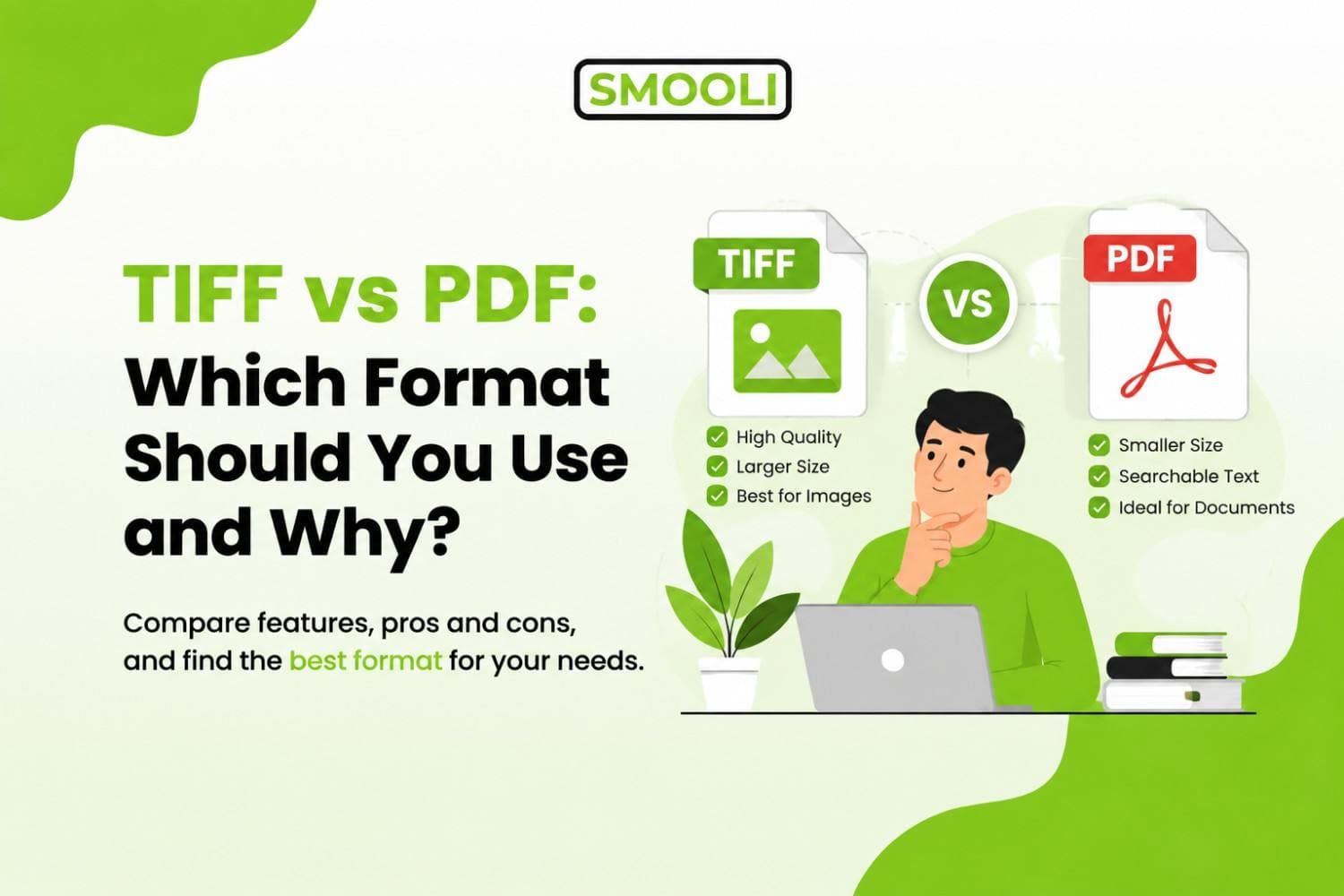
A PDF is a document format that can contain text, images, and interactive elements, while TIFF is purely an image format. Converting a PDF to TIFF essentially takes a "snapshot" of each page as a high-quality image.
3- Is converting a PDF to TIFF really free?
Yes. Many online tools platforms like Smooli let you convert PDF files to TIFF format at no cost, with no hidden fees or subscriptions required.
4- Can I convert PDF to TIFF without Adobe Acrobat?
Yes. You can use an online PDF-to-TIFF converter instead of Adobe Acrobat. This can be a convenient option when you only need to convert a PDF occasionally.
5- Can a multi-page PDF become a TIFF?
Yes. A multi-page PDF can be converted into TIFF images. Depending on the converter, you may receive separate TIFF files for each page or one multi-page TIFF.
6- Is TIFF good for document archiving?
TIFF is widely used for document imaging and archiving because it can preserve detailed, high-quality images. However, your organization's specific archival requirements should determine the format and settings you use.
Final Thoughts
Converting a PDF to a TIFF file doesn't have to involve expensive software or complicated steps. With the right free online tool, you can turn your documents into high-quality TIFF images in just a few clicks, no downloads, no watermarks, and no hassle.
Whether you're submitting documents, archiving important records, or preparing files for printing, a free PDF to TIFF converter makes the whole process quick and stress-free.
Before converting, check your original PDF, choose suitable quality settings, and always review the resulting TIFF. Keeping the original PDF is also a good idea in case you need the document in its original format later.